
Cette page peut contenir des liens d'affiliation. Si vous achetez par l'intermédiaire de ces liens, je peux percevoir une commission sans frais supplémentaires pour vous.
Pictoire’s New Preview Interface: Faster Editing, Better Control, and Smoother Video Flow
Video editing is often won or lost in the “in-between” moments—the tiny pacing adjustments, the quick cut decisions, the moment you realize a scene needs two more seconds to land properly, or the instant you spot that a text overlay is crowding the frame. These details are what separate a video that feels “fine” from one that feels polished, intentional, and easy to watch.
That’s why preview tools matter so much. In a modern video workflow—especially one built for speed—your preview experience isn’t a nice-to-have. It’s the place where you judge rhythm, test structure, and catch issues before you export. When the preview is small, sluggish, or disconnected from your edits, you end up guessing. And guessing leads to re-exports, wasted time, and videos that don’t quite hit the mark.
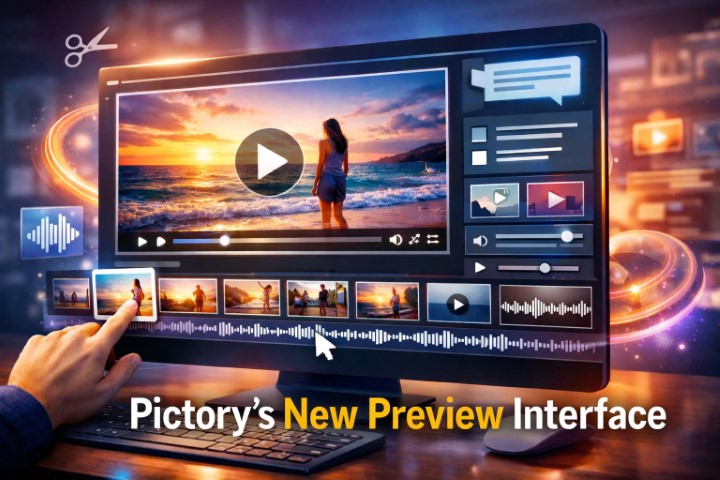
Pictoire’s new Preview Interface directly tackles these pain points. With a larger, faster video preview built into the editor and a visual timeline that displays scene thumbnails, you get a more intuitive way to shape your video. You can jump to any scene in a click, move to the exact second you want, and see updates in real time as you edit text, visuals, and audio.
In this article, we’ll break down what’s new, why it matters, and how you can use the updated preview experience to fine-tune pacing, flow, and structure before you generate and download your final video.
Why Preview Is the Real Editing Workspace
Most people think editing is mainly about trimming clips, choosing visuals, and setting music. In reality, those are the building blocks. The true editing happens when you watch the video back and make judgment calls:
Does the opening hook land quickly enough?
Is the middle section dragging?
Do the scene transitions feel natural or choppy?
Is the voiceover aligned cleanly with the on-screen text?
Are captions appearing at the right time and staying long enough to read?
Does the music swell at the wrong moment?
Is there a visual mismatch between what the narration says and what viewers see?
These aren’t decisions you can reliably make by looking at text fields or scene lists alone. You need to watch the video—and you need that watching experience to be frictionless.
When previewing is slow or awkward, creators tend to do one of two things:
They export too early just to see what it looks like, then come back and fix issues after the fact.
They settle for “good enough” because iterating feels expensive.
Both approaches cost time. The first costs time through repeated exports and corrections. The second costs time indirectly, because a video that underperforms often needs to be replaced, revised, or re-shot later.
A strong preview interface changes your behavior. It encourages you to iterate, refine, and improve—because doing so is fast.
That’s the core value of Pictoire’s new preview experience: it makes refinement easier.
What’s New in Pictoire’s Preview Interface
Pictoire’s update introduces two major improvements that work together:
A larger, faster video preview panel built directly into the editor
A visual timeline with scene thumbnails that you can click to jump instantly
This isn’t just a cosmetic upgrade. It changes how you navigate your project and how quickly you can test creative choices.
Here’s what you can do with the new interface:
View your video playback in a larger preview panel
Use the interactive timeline to jump to any scene by clicking its thumbnail
Edit text, visuals, and audio while seeing results instantly in real time
Let’s explore each feature and what it unlocks in practical terms.
A Larger Preview Panel: See the Video the Way Your Audience Will
A small preview window forces you to squint at details that viewers will absolutely notice: text legibility, alignment, spacing, the balance between overlays and background visuals, and whether the scene feels visually cluttered. If you’re editing on a laptop, a cramped preview can make it difficult to evaluate how the video will appear on common viewing devices.
With a larger preview panel, you can make better decisions faster.
Why Size Matters for Text and Captions
Text overlays and captions are among the most common sources of “export regret.” Things that look acceptable at a glance can fail in real viewing conditions:
Text lines wrap unexpectedly
Words sit too close to the edges
The font weight feels too thin on certain backgrounds
The text stays on-screen too briefly for comfortable reading
Captions compete with other on-screen elements
A larger preview helps you spot these issues early. It becomes easier to notice when something is visually cramped or when the hierarchy of information isn’t clear.
Why Size Matters for Visual Clarity
The same principle applies to images and video clips. In a smaller preview, you might not notice that:
A face is slightly off-center
A key detail is cropped
The subject is obscured by an overlay
A background clip is too busy for the message being delivered
A transition feels abrupt because motion changes too sharply
When you can actually see your content clearly, you waste less time second-guessing, and you make more confident edits.
Why Speed Matters as Much as Size
A bigger preview only helps if it’s responsive. When playback stutters or takes too long to update, you lose your train of thought—and editing becomes a stop-start experience.
The “larger, faster preview built directly into the editor” is particularly valuable because it reduces the mental friction between noticing an issue and fixing it. You spot a pacing problem, adjust it, and immediately see the improvement without a long delay.
That kind of tight feedback loop is what makes editing feel fluid.
A Visual Timeline With Scene Thumbnails: Navigate Like a Video Editor, Not a Spreadsheet
One of the most powerful elements of this update is the visual timeline that shows scene thumbnails. This change may sound simple, but it transforms navigation.
If you’ve ever tried to find a specific part of a video by scrolling through a list of scenes with text labels, you know how easy it is to get lost. Thumbnails create visual anchors. You can recognize scenes instantly based on imagery rather than having to remember which scene number contains which section.
Jump to Any Scene in One Click
This is the kind of feature you appreciate most when you’re doing iterative revisions—especially when you’re working with longer videos.
Instead of hunting for the right scene, you can:
Scan the thumbnails
Click the scene you need
Land there immediately
That means quicker fixes, smoother reviewing, and less frustration when making changes.
A Better Way to Check Structure
A thumbnail timeline isn’t only about jumping around. It also gives you a structural overview. You can look at the whole video and quickly answer questions like:
Do the visuals feel repetitive?
Is there enough variety from scene to scene?
Does the video have a strong opening image?
Does the middle section have momentum or does it visually “flatline”?
Are there too many similar-looking frames back-to-back?
This is the kind of macro-level clarity that helps you improve the overall flow and keep viewers engaged.
Move to the Exact Second You Want
Many edits aren’t about changing a whole scene—they’re about changing a moment inside a scene. Maybe the voiceover hits a key line at 00:07, and you want the on-screen text to appear exactly there. Or you want an image to linger for half a beat longer because it needs time to register.
The new preview makes it easier to move to the exact second you want. That precision matters because pacing is built from small timing decisions.
When you can dial in timing accurately, you can:
Match visuals to narration more naturally
Time text reveals so they support comprehension
Adjust scene lengths to maintain energy
Avoid awkward dead air or rushed moments
In short: you can create videos that feel intentional instead of accidental.
Real-Time Editing: See Your Changes Instantly
The third major benefit is real-time updates while editing text, visuals, and audio. That immediate feedback changes how you work.
Instead of making a batch of edits and then checking later if they worked, you can adjust and evaluate in the moment.
Real-Time Text Editing for Readability and Emphasis
Text is one of the easiest elements to tweak, but it’s also one of the easiest to misjudge when you don’t see the results immediately. Real-time preview helps you refine:
Line breaks and spacing
Length of text on screen
How quickly viewers can read it at normal playback speed
Whether emphasis words are visually prominent
Consistency in style across scenes
This is especially valuable for videos built from scripts, blog posts, or marketing copy, where the on-screen text often needs to be condensed for clarity.
Real-Time Visual Editing for Continuity
Visual continuity is what keeps a video from feeling disjointed. When you replace a clip or image, you want to ensure it fits:
Does it match the tone of adjacent scenes?
Is the motion too intense compared to the rest of the video?
Does it align with what the narration is actually saying?
Does the color palette clash?
Is the subject framed similarly from scene to scene?
With real-time updates, you can check these details instantly rather than discovering mismatches after export.
Real-Time Audio Adjustments for Smooth Flow
Audio is often where videos feel “almost right” but not polished. A transition might sound abrupt, the music may overpower the voice, or the cadence might feel off.
Being able to make audio edits and immediately hear how they affect the video helps you:
Balance voiceover and background music
Spot awkward pauses
Align audio cues with visual changes
Ensure transitions feel smooth instead of jarring
Even small audio improvements can elevate the perceived quality of a video dramatically.
How the New Preview Interface Saves Time
Time savings in editing doesn’t only come from faster playback. It comes from fewer repeated actions, fewer exports, and fewer “backtracking” moments.
Here are some of the most common ways the updated preview experience reduces wasted effort.
Fewer Exports Just to Check the Video
If previewing isn’t reliable, people export early to test. But exporting takes time, and it breaks flow. When previewing is smooth and accurate, you can confidently refine within the editor.
That means fewer generate-and-download cycles and more editing progress per session.
Faster Fixes During Review
A typical editing workflow involves reviewing the video, noting problems, then hunting down the scenes that need changes. The visual timeline speeds that up:
Notice issue
Click scene thumbnail
Fix
Continue reviewing
Instead of losing momentum, you stay in a tight editing loop.
Easier Pacing Improvements Without Guesswork
Pacing problems are often subtle. A scene might be one second too long, but that one second can make a video feel sluggish. Or a key scene might be too short, making the message feel rushed.
Being able to move to the exact second and watch changes update in real time reduces the guesswork. You can make micro-adjustments quickly until the video feels right.
How to Use the New Preview Interface to Improve Pacing, Flow, and Structure
Features are only valuable if you use them deliberately. Here are practical ways to take advantage of the new preview tools to make your videos stronger.
1) Start With a “Structure Pass”
Before you obsess over details, use the thumbnail timeline as a bird’s-eye view.
Play through the video once with a simple goal: evaluate structure.
Ask yourself:
Does the first 5–10 seconds clearly set the topic and pull attention?
Does each scene naturally lead to the next?
Is there a clear middle progression, or does it feel like disconnected points?
Does the ending wrap up cleanly with a takeaway or next step?
As you watch, use the thumbnails to quickly jump back to areas that feel weak. This isn’t about perfection yet—it’s about ensuring the video has a coherent story arc.
2) Do a “Pacing Pass” Focused on Scene Length
Now watch again, focusing only on timing.
You’re listening for moments where attention might drop:
Scenes that linger after the point is made
Rapid-fire scenes that feel overwhelming
Sections where the rhythm becomes monotonous
Use the ability to move to exact seconds and fine-tune scene durations. The goal is to make the video feel like it has forward motion.
A helpful rule of thumb: if you find yourself waiting for the next idea, the scene is too long. If you find yourself scrambling to read or understand, it’s too short.
3) Do a “Readability Pass” for On-Screen Text
With the larger preview panel, evaluate text the way a viewer experiences it—at playback speed.
Look for:
Text that’s too dense
Overlays that cover important visual content
Inconsistent formatting across scenes
Captions that appear too late or disappear too early
Scenes where text competes with the background
Then adjust and immediately see the difference. This is where real-time preview really shines, because you can make small tweaks and confirm the result instantly.
4) Do a “Continuity Pass” for Visual Consistency
Visual consistency doesn’t mean everything looks identical. It means the video feels like one cohesive piece rather than a slideshow of mismatched styles.
Use the thumbnail timeline to spot patterns:
Too many similar visuals in a row
Sudden shifts in tone (serious to playful without a bridge)
Clips that look lower quality than the rest
Abrupt changes in brightness or color temperature
Click directly into scenes that stand out and refine them.
5) Do an “Audio Pass” With Headphones
Finally, focus on sound—voiceover pacing, music levels, and transitions.
With real-time updates, you can adjust and immediately hear improvements.
Listen for:
Music overpowering dialogue
Awkward silences
Audio transitions that feel sudden
Voiceover that doesn’t match the energy of the visuals
Small adjustments here often create a “professional polish” effect that viewers notice even if they can’t explain why.
Who Benefits Most From This Update
The updated preview interface helps anyone editing videos—but it’s especially useful for a few groups.
Creators Producing Frequent Content
If you create videos weekly or daily, time savings compound quickly. A faster, more visual workflow helps you publish consistently without sacrificing quality.
Marketers and Business Owners
When you’re creating ads, product explainers, or social media content, pacing and clarity directly affect performance. A smoother preview process helps you tighten messages before export.
Educators and Trainers
Instructional videos rely on comprehension. Being able to fine-tune text timing, visual alignment, and scene flow makes lessons easier to follow.
Teams Collaborating on Revisions
When someone requests changes like “make scene 4 shorter” or “update the text near the middle,” a thumbnail timeline and quick navigation make it easier to implement feedback accurately.
The Bigger Picture: Why Interface Improvements Matter in AI-Assisted Video Creation
Tools like Pictoire are built around speed—turning scripts into videos efficiently, reducing manual editing overhead, and making video creation accessible to more people. But speed isn’t only about generation. It’s also about iteration.
In real-world workflows, videos rarely come out perfect on the first pass. You generate a draft, review it, refine it, and polish. The preview experience is the backbone of that refinement stage.
A preview interface that is larger, faster, and more visual shifts the editing experience from “technical task” to “creative process.” Instead of wrestling with navigation and delays, you can focus on the decisions that actually improve the video: timing, emphasis, structure, and clarity.
That’s what this update is really about: putting more control in the editor’s hands while saving time in the process.
Final Thoughts: A Smoother Way to Polish Before You Generate and Download
The best videos don’t necessarily start as the best drafts. They become great through refinement—tiny improvements that accumulate into a professional result.
Pictoire’s new Preview Interface supports that refinement with:
A larger preview panel that makes details easier to judge
A visual timeline with clickable scene thumbnails for instant navigation
Real-time updates while editing text, visuals, and audio so you can fine-tune quickly
Together, these changes make it easier to shape pacing, flow, and structure before you generate and download your final video. That means fewer surprises after export, fewer wasted cycles, and more confidence that what you’re publishing is the best version of your content.
If you’re someone who values speed but also cares about quality, this update makes the editing process feel less like “working around a tool” and more like simply editing a video—clearly, quickly, and with control.